

Every business
Switch tools without retyping your client list
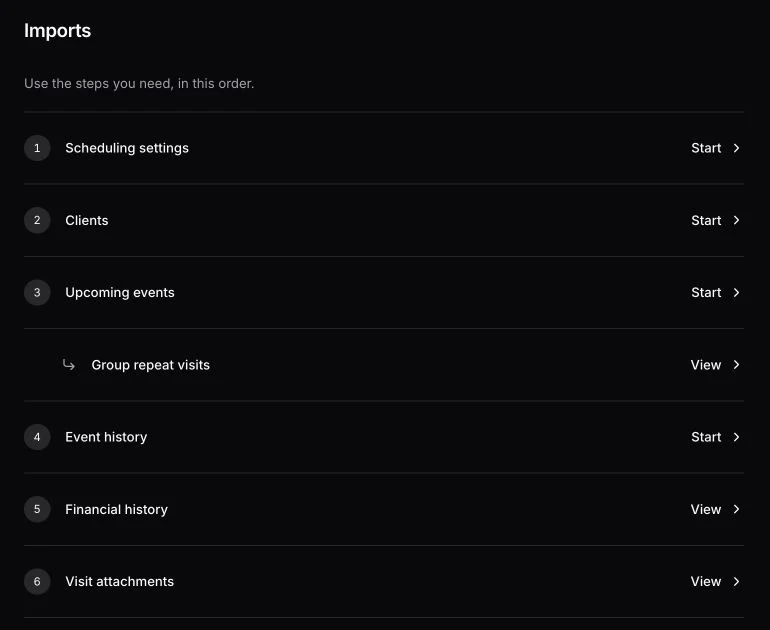
Import your clients, upcoming appointments and past visits, and review every row before anything is saved. Settings › Imports walks you through the steps in a sensible order.
Client imports are on Standard, Pro and Business. Group, collective and round-robin settings need Pro or Business.
How it works
Start with your scheduling settings
Upload a Calendly or Cal.com settings export. Supported services arrive inactive and private, so you can check them before anyone books.
Import clients from CSV
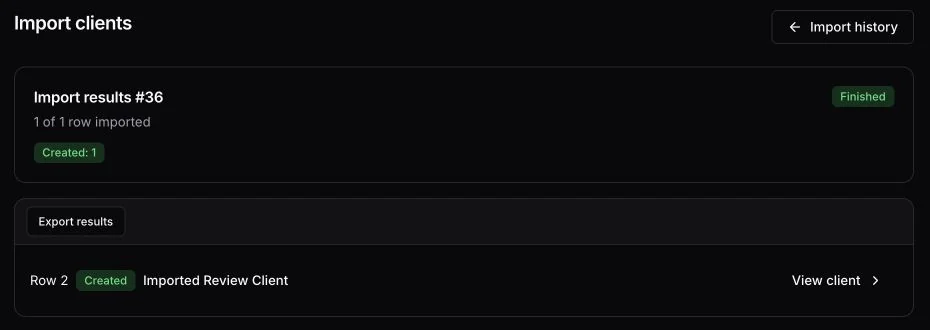
Map columns, choose whether matching emails are skipped or updated, and review the selected records. Each result links to the saved client profile.
Add upcoming appointments and history
Map an appointment CSV to your current services and staff. Rows go through the usual availability and conflict checks before they're saved.
What’s included
- Guided order in Settings › Imports
- Column mapping with a preview before import
- Skip or review updates to existing clients
- Up to 5,000 client records per file
- Import history with links to saved records
Good to know
- Imports don't add marketing consent or send invitations to clients.
- There's no live sync with your old tool. You import files you export yourself.
- Payment methods and payment history stay with your previous provider.
Questions
Try Data Imports free for 14 days
Every new account starts with a 14-day Business trial. No credit card required.